Tuesday, December 20, 2011

Share your Webpage/Blogger to StumbleUpon

This is the very Popular place to increase visitor to your website/Blogger,it help you easily discover new Website/Blogger

1. First Create an account by clicking on StumbleUpon.

2. After Creating an account login-in to StumbleUpon as you login a window will open.

3. At the right side on the top you will see Profile link click on profile Link see below.


4. Now move your mouse cursor at the bottom of your StumbleUpon Login page there you will get a link at the left side named +Add a New Page just click on it see picture below.


5. As you click the +Add a New Page a new window will open at the same page where you can put the information (like: Web page address,add tag mean keyword etc.) for your Website/Blogger see picture below.


6. Than Click Add This Page Button I am sure within few minute the visitor will come over your Website/Blogger.

Thanks For coming here.

Monday, December 19, 2011

Add the Official Share Buttons to Blogger/Website

Blogger allow to add the share button like Twitter,Facebook,Google Buzz,Gmail so that the viewers can share and add your website/Blogger.


Just Learn to Add Share Button

1. Add Share Button below your blogger post Log-in to your Blogger Click on Design than Page Elements see Picture also.


2. Now under the Page Elements you will see many Add Gadget do not click any Gadget Just look for Blog Posts (which may be placed at the middle portion) Click on Edit button see Picture also below.


3. Than Select the Check Button of Show Share Buttons and Shave your Template.

Done.

Note: After Doing all above step just check your blogger to view if the share button do not appear over your blogger just follow me a little more.

1. Log-in to your Blogger Click on Design under the Design Tag click on Edit HTML now click on chek button Expand Widget Template.

Note: Before Edit your Template take your Template full Backup.

Note: Never forget to click on Expand Widget Template tag before Edit or backup your Full Template

2. Now find the code see below.

<data:post.body/>

3. Place the code under the above code and save your Template i am sure you will see the share button now.

    <data:post.body/>
<div class='post-share-buttons'>
<b:include data='post' name='shareButtons'/>
</div>
  

4. Paste the code under the green code.


Thanks For coming here.

Saturday, December 17, 2011

Add Adsense Ad under your post title

Google Ad-sense is a very unique ads network service for making money if you have really legally content on your website. There is method to take your ads below the post title,so that it looks nice and may be clicked more by the visitors and you can earn.


1. Login-in to your Blogger :


2. Click on Design than Edit HTML


Note 1: Remember to click Expand the widget Templats before Edit your Template.

Note 2: Must take the backup of your Template before Edit your Template.


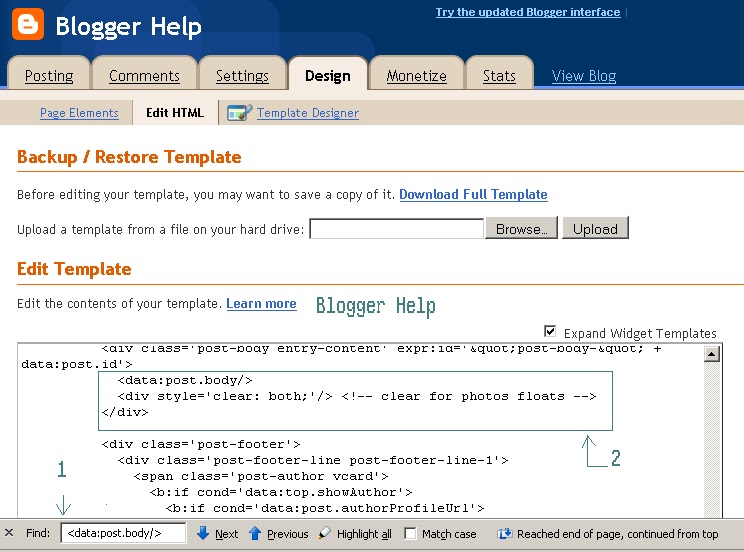
3. Now find the code by pressing CTR+F a box will open type below code inside the box.
    
<data:post.body/>

4. You will find the code like 

         <data:post.body/>
            <div style='clear: both;'/> <!-- clear for photos floats -->
          </div>;

See picture also below :-


Paste your adsense code above <data:post.body/> the code see below picture also.


Save your Template and see the result.


Thanks for coming here

Blogger Help

Take the backup of your blogger's all post

This is for your safe purpose if by mistake or any reason your post goes deleted and there are no option you have so just learn how to take your all posted backup in your computer regularly and restore your post in case your post deleted and you can also transfer your post to another blogger easly with your post backup.


Step to take backup your post:


1. Log in your blogger.

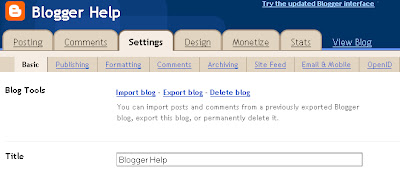
2. Click on the Setting and than click on Basic tab.


3. There you will see the three Blog Tools :Import blog - Export blog - Delete blog.

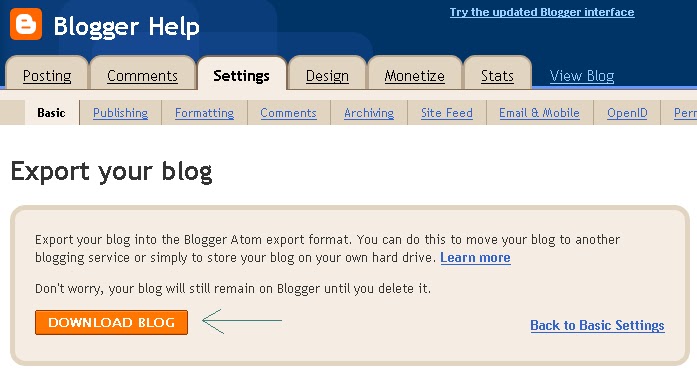
4. Select the Export blog tag for taking backup of your all post. 


5. After Clicking Export blog tag you will get next page to Download blog.
 
6. Choose the location where you want to take backup of your blogger with post.


Thanks For coming here


Friday, December 16, 2011

Add Google+ Page/Badge To Blogger/Website

First of all you have to register with Google+ Page so that you can get the traffic for your Blogger now you just add the Google+ page on your blogs/website so that your blogs lover can join your blogs in their Goole+ page.

If you are aware with the Google+ page firt  Create Google+ Page for Your Blogger/Website

Start to add Google+ page to your Blogs/Website

Log-in to Google+

Just follow the picture below


After clicking that area go to the left side at the middle top Get started Button click on it, also see the picture below.


Now Select Get the badge below the Connect your website Tag.


There you will find the selection of different' s style of badges choose any one what ever you desire,see the picture also below.


After that move your mouse cursor down and get the code

In that box you will find two separate  code which will be placed in to two different  area of your blog/Website,see below how the code will be look like.


First Part of the code will be placed bellow the tag of <body> in your blogger.

Log-in to your blogger than click on Design tag than choose Edit HTML.

Note: Take the full template backup before edit your template,by clicking Download full template.
Note : Before Download full template select Expand Widget Template,Than take the backup.

See below the picture where you have to put your code than save your template.


Now Click Page Element beside of Edit HTML.

Choose Add A Gadget than a small pop up window will be open find the HTML/Java Script and Pste your IInd code here than save it.


Thanks for Coming here,

Blogger Help