Note:- Be remember You can restore your deleted blog if you haven't exceeded the 90 days limit.Google provides a 90 days restoration Limit.
Tuesday, February 21, 2012
Restore a Deleted blog
Unfortunately if you had deleted your blog by taking decision immediately there after you think it happened wrong by you,now you desire to recover it may be this article will be helpfull for you all.
Note:- Be remember You can restore your deleted blog if you haven't exceeded the 90 days limit.Google provides a 90 days restoration Limit.
Just follow these few simple step to restore the deleted blog.
1. Log-in-to your blogger you will see a dashboard it will be look like see below.
2. Now move your mouse cursor up to the end of your Dashboard at the end you will see an option show all click on it see below.
3. As you click Show all option it will show you all deleted blogs see below.
Note:- Must remember the deleted blog age should not be exceed 90 days.
4. Now just click on the Undeleted this blog option,within few second's you will see the deleted blog come back to your blogs list see below also.
You have done
Thanks For coming here.
Posted by Lalit Maheshwari at 12:38 PM 1 comments
Labels: blog, Deleted blog, Recover, Restore
Friday, February 17, 2012
Create/Generate and Add AlertPay Donate Button on your Blog/Website.
Donate Button is placed for the financially help of a blog/website owner which given by the visitor if they desire to donate a little amount for help to the blog/website owner and as i think its really helpful for the blogger/Website owner.
Note: This (Donate Button) facility Provide by the AlertPay for Indian Users too but the PayPal India do not Start this facility for Indian Users.
Now Just follow these few simple step to create the Alertpay Donate Button see below.
1. First of all create a new account who Don't have an account? Sign up now.
Note:-Create New Account with Personal Pro Account Type option.
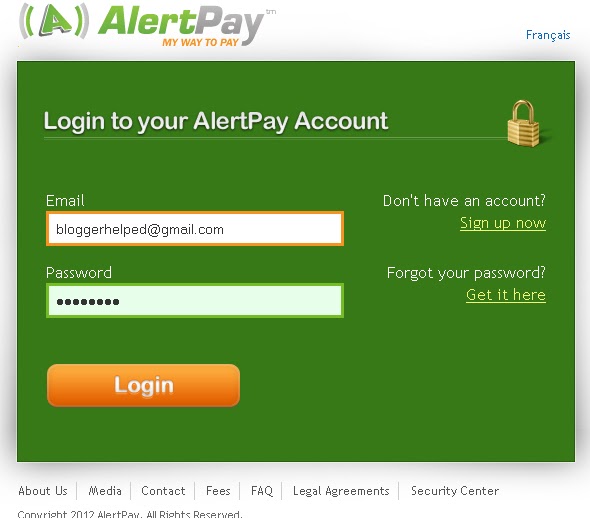
2. Log Into your AlertPay Account see bellow.
3. You will see an option at the top of the right side Business Tools than click Manage Donations / Generate "Donate Now" button see bellow.
4. There you will see Add Button just click at the button see bellow also.
5. Finally you will get a little form just fill all the required field only and than click Update Button.see Picture bellow too.
6.After clicking Update Button the next page will be opened you will see the HTML code like see bellow.
Note:- AlertPay Donate Button Create process has been completed now the next step to add your Donate Button to your Blog/Website.
Add AlertPay Donation Button into the blogs.
1. ust Log into Blogger click on Design tab than Page Element tab now click on Add a Gadget see Picture below.
2. As you click Add a Gadget tab a separate Window will open just find the HTML/JavaScriptclick on it see the picture below.
3. As you click on HTML/JavaScript into the same window another page will open by the name Configure HTML/JavaScript that will be in two part Title and Content Do not need to give the title name now copy the generated HTML code from the AlertPay and paste the code under the Content than press save button see Picture below also.
4. Finally click on save button on your page Element see Picture Below.
5. Than browse your blogger or blog definitely AlertPay Donation Button will be placed on your blog just see an Example Picture below.
You have done
Posted by Lalit Maheshwari at 12:59 PM 1 comments
Labels: Alert Pay, blog, Create, Donate Button, Gadget, Generate Button, Website
Thursday, December 22, 2011
Take Full Backup of Blogger Template.
Do you know why i suggest you all to take the backup in regular basis this is why,if you are running a blogger and you are getting good revenue from your blogger so please don't think that your are the owner of this blogger google is the owner google is controlling our blogger's all activity.I had read over the internet about several cases where are blogger's blog has simply disappeared and Google never explain about it or get it back.in many cases google also block for policy violations and also many hackers are ready to heck for escaping to hack your blogger take backup regularly.
Take the backup of your Blogger:
1. Sign in to your blogger you will see a dashboard see picture below.
2. Click on Design than Edit HTML now check the Expand Widget Template see picture below.
Note: Never forget to click on Expand Widget Template tag before Edit or backup your Full Template
3. Now Click at the Download Full Template ,there will be a small window will appear at your screen which will ask to save your Template location give the path where you want to save your Template backup see picture below.
You have done
Thanks For coming here.
Posted by Lalit Maheshwari at 4:06 PM 1 comments
Labels: Backup, Blogger, Template Backup
Wednesday, December 21, 2011
Make Default Browser for Browsing with Mozila Firefox,Chrome or IE
As you install a new browser on your computer like Internet Explorer,Firefox or chrome after completing the installation there a option appear on your screen to making your browser as a default browser.
If you are working with Internet Explorer as a default browser now u want to make Firefox or Chrome as a default browser just follow the step how to make your browser default.
Make your Firefox as a default browser:
1. Double click on your Firefox after opening your Firfox just see at the top of your browser a link Tool than Click on Options.
Or
Use these key to open the options quick Alt+T+O As you press these keys at a time the Options window will appear on your screen.see below.
2. Click on the Advanced tab under this tab you will find another button named Check Now click on it a separate window will open which will ask for making your browser as a default browser Click on yes see picture below.
You have Done.
Make your Internet Explorer as a default browser:
Initially with your operating system Internet Explorer Installed as a default browser Unfortunately if it is not as a default just see how to make your IE Default.
1. Double click on your IE after opening your IE just see at the top of your browser a link Tool than Click on Options.
Or
Use these key to open the options quick Alt+T+O As you press these keys at a time the Options window will appear on your screen.see below.
2. Click on the Programs tab under this tab you will find another button named Make Default click on it see picture below.
You have done
Make your Opera as a default browser:
Open your Opera see at the top left side Opera button Just click over the button than follow the bellow step.
1. Go to Settings than select Preferences see picture below.
2. Than a separate window will open click on Advanced tab Than Programs.
3. Tick the checkbox for "Check if Opera is default browser on startup" see picture below.
4. Next time you start Opera, answer "Yes" when the dialog asks you if you want Opera to be the default browser on your computer.
You have done.
Make your Chrome as a default browser:
1. Click on the Chrome "wrench" icon, placed at the top right hand side of your browser window. click on it than the drop-down menu appears, select the Options see picture below.
2. Click on the Basics tab if it is not already selected. At the bottom of the dialog is the Default browser section To change that setting, click on the button labeled Make Google Chrome my default browser see picture below.
You have done.
3. Tick the checkbox for "Check if Opera is default browser on startup" see picture below.
4. Next time you start Opera, answer "Yes" when the dialog asks you if you want Opera to be the default browser on your computer.
You have done.
Make your Chrome as a default browser:
1. Click on the Chrome "wrench" icon, placed at the top right hand side of your browser window. click on it than the drop-down menu appears, select the Options see picture below.
2. Click on the Basics tab if it is not already selected. At the bottom of the dialog is the Default browser section To change that setting, click on the button labeled Make Google Chrome my default browser see picture below.
You have done.
Posted by Lalit Maheshwari at 2:58 PM 0 comments
Labels: Chrome, Default, Default Browser, Firefox, Google, IE, Internet Explorer, Opera, Safari
Tuesday, December 20, 2011
Add StumbleUpon Badge to your Blogger
StumbleUpon is a directory this is a collection of different types Website/Blogger you can share your Website/Blooger with thousand of Peoples all around the world.
See How to put the Badge of StembleUpon to your Blogger.
1. Login to Your StembleUpon than you will see a sites button at the right side click the button see picture also.
2. As you click Sites button next window will open there you can select any badge Design copy the code from the box see picture below
Put your code inside your Template follow me how.
1. First Sign-in to your Blogger click on Design under the Design Tab you will see Edit HTML click on it.
Note: Before Edit your Template take your Template full Backup.
Note: Never forget to click on Expand Widget Template tag before Edit or backup your Full Template
Find the Below Code ( By preshin Ctrl+F ) Put the code inside the serch box than Enter.
<data:post.body/>
Paste the code under the above (Red Color code) code which will look like see below.
<data:post.body/>
<!-- Place this tag where you want the su badge to render --><su:badge layout="3"></su:badge>
<!-- Place this snippet wherever appropriate -->
<script type="text/javascript">
(function() {
var li = document.createElement('script'); li.type = 'text/javascript'; li.async = true;
li.src = 'https://platform.stumbleupon.com/1/widgets.js';
var s = document.getElementsByTagName('script')[0]; s.parentNode.insertBefore(li, s);
})();
</script>
Save your Template browse your Blogger to see the StumbleUpon Badge
Thanks For coming here.
Posted by Lalit Maheshwari at 2:24 PM 0 comments
Labels: Badge, Blogger, StumbleUpon
Subscribe to:
Comments (Atom)